Facility Navigation Bar Tool
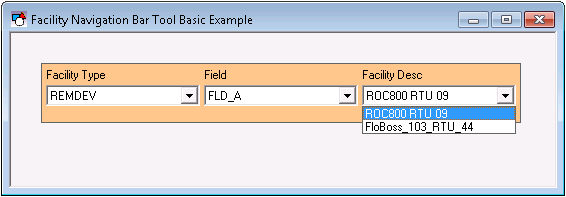
 The Facility Navigation Bar Tool lists your facilities in drop-down menus (or "levels") based on their attributes. You can use the Facility Navigation Bar Tool to determine which facilities are displayed in TheView or in a Group Grid Tool.
You specify how many drop-down menus the Facility Navigation Bar Tool includes and select the attributes each menu uses to filter facilities. The drop-down menus are called "levels" in the Facility Navigation Bar Tool and in the online help.
You can use the Facility Navigation Bar Tool to set the [Facility] property of TheView for a templated screen. This allows the selected facility to determine the source of the data displayed on TheView. Set the [AutoRestart] property of the Facility Navigation Bar Tool to 1 — Yes. [AutoRestart] will then restart TheView and set its [Facility] property to match the facility selected in the Facility Navigation Bar Tool.
You can also use the Facility Navigation Bar Tool with a Group Grid Tool. The Facility Navigation Bar Tool then sets the Facility ID for each row in a grid based on a selected attribute. In this case, set [AutoRestart] to 0 — No, since clicking on a row in the Group Grid Tool will set the [Facility] property of TheView.
Note: To keep Facility Navigation Bars synchronized from screen to screen, use the SelectionsPersistName properties.
|
Sample Facility Navigation Bar Tool in Run Mode |
For information about scripting and the Facility Navigation Bar Tool, see CxHmiFac.
More:
 Configuring the Facility Navigation Bar Tool
Configuring the Initial Filter
Configuring the Drop-Down Levels
Facility Navigation Bar Tool – Properties, Events, and Methods

